This page walks you through manually coding the practice project that every new user gets, called example-short-uncoded. The aim is to take you from "I just signed up" to "I have a small map I made myself", in around twenty minutes. If you'd rather have the AI code it for you, see the AI coding walk-through (separate page); if you want to know why we code the way we do, see Task 2 introduction.
Watch first#
A short video tour is often quicker than reading. The video above ("Manual coding in cm4: first steps") covers the same workflow as the rest of this page. The full playlist of Causal Map 4 tutorial videos covers everything else. The written walk-through below uses the first interview in example-short-uncoded, where Mark talks about his day-to-day feelings.
Open the example project#
When you sign up, the app creates a personal copy of a practice project for you.
- In the Project Dropdown at top left, choose
example-short-uncoded-[your-username]. - The Sources bar will fill with two short interview extracts.
- In the Sources bar, click source
1.
The text of source 1 (Mark's interview) appears in the Source Text Viewer. The right-hand side shows an empty Map panel. That's your starting point.
Read before you code#
Read the whole of source 1 once, without coding anything. You're looking for places where Mark says or implies that one thing influences another, even loosely. Notice how often a single sentence contains a chain (A made B happen, which then led to C). That's normal in real speech, and it's why a single quote often becomes two or three separate links.
While you read, ignore everything that isn't a causal claim, including descriptions of facts, opinions about whether something is good or bad, and questions from the interviewer. Causal mapping codes only bare causation: someone saying or implying X influences Y. The reasons for this minimalist stance are in why we code only bare causation.
Code your first link#
A clear causal claim from Mark, about what calms him down at the end of a long day:
a bit of quiet time. After they're in bed. Just to like, mess around with something. My old soldering iron. Or trying to fix that radio. Something hands-on... That calms me down.
The quiet hands-on time causes him to feel calm. Code it like this:
- With your mouse, highlight the passage in the Source Text Viewer, from "a bit of quiet time" to "That calms me down". Stay within one statement; don't drag across paragraph breaks.
- The Link Editor opens. Your highlight appears in the Quote box at the bottom; you don't normally need to touch it.
- In the Cause box, type a short label,
quiet hands-on time. Press Enter to commit. - In the Effect box, type
feels calm. Press Enter. - Press Save.
A new link appears in the Map panel on the right. The phrase you highlighted is now coloured in the source text. Click it again at any time to reopen the link for editing.
That's the whole loop: highlight, name cause, name effect, save. Everything else is variation on this.
For the full reference on the editor (chain mode, plain coding, multi-cause and multi-effect, custom fields), see Create Links tab.
Naming factors well#
Factor labels do most of the work in causal mapping. A few principles:
- Reuse existing labels when you can. After you've coded a few links, the dropdowns will start suggesting labels you've already used; pick from the list rather than re-typing, so the same idea ends up under one name.
- Be specific, not abstract.
Increased household incomeworks better thanEconomic improvement. See don't over-generalise. - Make the direction implicit. Labels like
Lost job,Sold cow,More foodalready point in a direction; the link itself just says "this caused that". This is what we mean by semi-quantitative labels. - Don't worry about consistency on the first pass. You'll tidy labels up later, in bulk, using search/replace and bulk relabel; that's a separate page.
The wider craft of writing factor labels is covered in factor labels: a creative challenge.
Several causes, several effects#
Often a single quote supports more than one link. The Link Editor handles this without forcing you to repeat yourself.
Type two or more causes into the Cause box (separated by Enter), and likewise for effects. When you press Save, the app creates one link for every cause-effect combination. Two causes and two effects means four links, sharing the same quote.
Mark gives a clear example when he describes coming home to chaos:
Sarah's late back, I've had a long day on-site, and you walk in and it's like... toys everywhere. Half-eaten cereal. Laundry mountain. And the kids are immediately like, "Dad, I'm hungry!" or "Dad, my show!"... That's when I just get... so frustrated.
Several causes, one effect. Highlight the passage and:
- in Cause, type
house mess, thenSarah late home, thenkids demanding attention(Enter between each) - in Effect, type
feels frustrated - press Save.
The app creates three links, one for each cause, all sharing the same quote and the same effect. Use this when the speaker names several drivers, or several outcomes, in one breath. Don't use it as a shortcut for unrelated claims; if two causal statements are really separate, code them separately.
A bit further on, Mark tells you what happens next:
And then I snap. Just say something sharp. To the kids. Or to Sarah, if she's just walked in. And then, instantly, it's like, "Why did I say that?" That guilt.
That's a chain: frustrated leads to snapping, snapping leads to guilt. Code it as two links sharing the same quote: feels frustrated to snaps at family, then snaps at family to feels guilty. (If you turn on Chain mode in the Link Editor, the Effect of the link you just saved becomes the Cause of the next one, which saves a bit of typing.)
For more on chain mode, multi-cause/effect, and using the Links tab to review your work, see the next video in the playlist:
Adding metadata as you go#
Most of the time you can ignore the rest of the editor and come back to it later. Three small things are worth knowing about now:
- Tags. Quick free-text labels, useful for "come back and review this", "respondent unsure", "future hypothesis", and similar. Tags starting with
?mark caveats (?hypothetical,?doubtful); see the tag conventions in the Create Links tab reference. - Sentiment. A simple
+1,0,-1per link, used when a claim is about an increase, no change, or a decrease in the effect. Mark'squiet hands-on timetofeels calmis positive;house messtofeels frustratedis negative. Details in sentiment metadata. - Custom fields. Project-specific structured fields, for example
mechanismorconfidence. You don't need these on day one; if you do, see adding custom columns.
You can also add metadata in bulk later, in the Links panel, so don't slow yourself down adding it as you code.
Hierarchy and tags inside labels#
Two label conventions become useful as the project grows. They're worth noting now even if you don't use them on the first pass.
- A label containing a semicolon is treated as hierarchical:
Family life; Quiet timeis read as "Quiet time under Family life". This lets you zoom out to a coarser map without losing detail. See hierarchical coding. - You can also embed metadata in the label itself, for example
feels calm #positiveorfeels guilty (Outcome). Useful when you don't yet want a full custom column. See tags inside factor labels.
If you're not sure, code flat first. You can convert flat labels to hierarchical ones in bulk later (see the bulk relabel page when it's written).
Move through the sources#
When you've coded everything in source 1 that looks worth coding, click the right arrow in the Source Text header to move to source 2. The map will start to grow as the same labels appear across multiple sources. That's where causal mapping starts to pay off: the same factor named by several speakers gets a thicker presence on the map.
Look at your map#
Switch your attention to the Map panel on the right.
- Click any edge to see the underlying quote.
- Click any factor to focus on links that touch it.
- The Map Formatting controls let you change colour, width, and labels (we have a separate how-to on map formatting).
If the map looks crowded after just a few sources, that's expected. The Filter Links panel exists exactly to manage that, starting with a top-N frequency filter. The full picture of which filters do most of the work is in the extensions chapter.
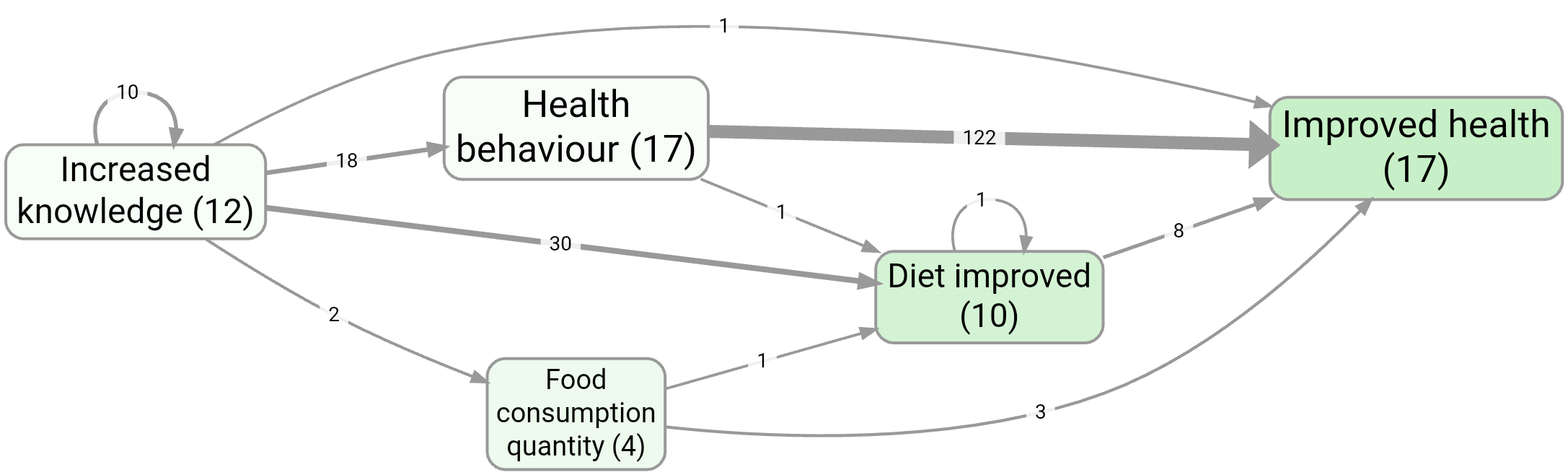
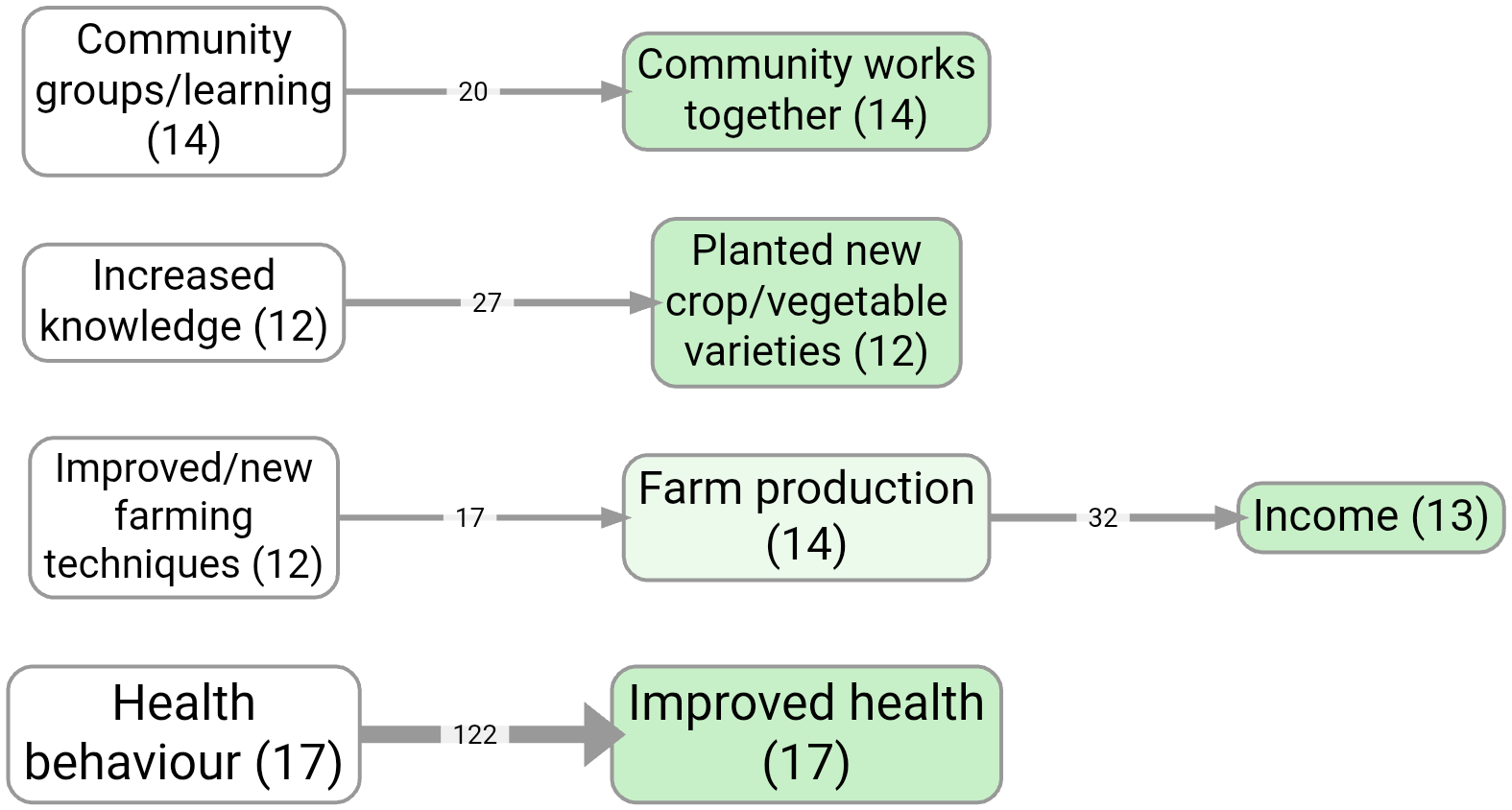
On a larger real project, factor-frequency and link-frequency filters are the usual first step. The anonymised example-original tutorial project shows the idea at scale — e.g. bookmark #266 (map) and #1124 (link-frequency style):
Tidy up afterwards, not during#
Resist the urge to consolidate labels as you code. It slows you down and you'll often regret early decisions once you see the whole project. Code messy, tidy in bulk:
- Use search/replace in the Factors and Links tabs to rename labels project-wide.
- Use Bulk Relabel in the Factors panel to merge or split labels.
- Use the temporary cause/effect columns if you want to experiment without overwriting the originals: see recoding labels temporarily.
The full decision tree for cleaning up labels (and where AI-assisted recoding fits) is in different kinds of coding and recoding.
When you're done#
Save a bookmark of your map (Bookmarks button, top right) so you can come back to this exact view. From there, the natural next steps are:
- explore the Filter Links panel to ask questions of your map
- read different kinds of coding and recoding to see what the AI can take off your hands
- and, when you outgrow the example project, read about gathering your own data.
- browse saved example views from the public
example-originalproject for inspiration.